
What an ATS actually does
An applicant tracking system (ATS) is the software an employer or recruitment agency uses to collect applications, move candidates through each stage and search everyone who has applied. When you upload a CV, most systems parse it: they pull the text out of your file and try to sort it into fields such as name, email, job titles, employers, dates, education and skills.
Recruiters then search and filter those fields, for example “payroll” plus “Leeds”. That is why format matters. If the system can’t read your CV, or reads it in a jumbled order, you are harder to find, even when you are a good match.
An ATS can reject applications automatically, but only by rules the employer sets up, such as screening questions (“Do you have the right to work in the UK?”) or a filter for gaps of more than 6 months in your work history: the co-author of a 2021 Harvard Business School study said half of US companies had one.
How common are these systems? Jobscan, a company that sells CV-checking tools, reviews the job listing pages of every Fortune 500 company each year. Its 2026 ATS usage report (published 20 August 2026) found a detectable ATS at 97.4% of them, 487 of 500 companies. These are very large US employers, so read it as a sign of how standard the technology is, not as a UK figure. In the UK you meet the same idea in big employers’ careers portals and in the candidate databases that recruitment agencies search. Public-sector systems such as NHS Jobs and Civil Service Jobs mostly use online application forms instead (most NHS adverts don’t accept a CV at all), so there the form is what gets read.
Formatting that parses reliably
These 6 habits prevent most problems, and none of them makes a CV look dull. For what to put in each section, see how to write a CV.
Use a text-based PDF or a .docx file
A text-based PDF stores your words as text. An image PDF stores a picture of them: a scan, a photo of a printed CV, or an export from a design app that “flattens” the page. To an ATS, an image PDF can look almost blank.
To check, try to highlight one word. If you can, the text is real. If the whole page highlights as one block, or nothing happens, it’s an image. Every YourCVy PDF includes real, selectable text that applicant tracking systems can read.
Use standard section headings
Parsers look for familiar words: Profile or Personal statement, Work experience, Education, Skills, Languages. A heading like “My journey” may be clever, but a system may not know where to file what follows. Writing in another language? Use the standard words in that language. YourCVy can set its headings in English, German, French, Spanish, Italian, Dutch or Portuguese.
Keep the structure simple
One column is the safest choice for online portals, because there is only one possible reading order. A clean two-column layout is usually fine, but some systems read across both columns line by line, which can mix a skills list into a job description. In Word, avoid tables and text boxes for your main content: their text can come out in the wrong order or be skipped.
Put contact details in the body of the page
In Word documents, some systems ignore the header and footer areas. Keep your name, email, phone number and town or city in the main body, as plain text. A small phone icon is fine, as long as the number beside it is real text.
Write dates the same way every time
Put dates on the same line as the job title or employer, with month and year, such as Mar 2021 – Present. Pick one format and stick to it, so the system can work out how long you held each role.
Choose a readable font and size
Font size doesn’t change what a parser reads, but a person reads your CV next. For a CV written in Word, the National Careers Service recommends a clear font such as Arial, Times New Roman or Calibri at size 11 or bigger. Designed templates use smaller type: most YourCVy layouts set body text at about 9 point (about 10 with Text size at 115%). Print a page at 100% to check it reads comfortably.
What commonly breaks parsing
If a portal fills in your details wrongly, look for one of these first.
| Problem | What the system gets, and the fix |
|---|---|
| Image-only PDF (scan, photo, flattened export) | Little or no text. Fix: export again as a text PDF from Word, Google Docs or your CV builder. |
| Text inside images, logos or icons | Nothing: images aren’t read as text. Fix: write every detail as text; use icons only as decoration. |
| Skill bars, stars and percentage charts | Nothing, or stray symbols. Fix: write the level in words: “Excel (advanced)”, “German (C1)”. |
| Word tables and text boxes | Text out of order or missing. Fix: use normal paragraphs, bullets and tab stops. |
| Several columns side by side | Lines from different columns merged. Fix: use one column for portals, or check the order with the self-test. |
| Creative headings | Sections not recognised. Fix: use standard headings. |
| Contact details in a Word header or footer | Missing email or phone number. Fix: move them into the body of the page. |
The 2-minute self-test
You can’t see inside an employer’s ATS, but you can see roughly what it will see. Run this on the exact file you plan to upload.
- Select all the text. Open the PDF and press Ctrl+A (Cmd+A on a Mac). If nothing highlights, or the page highlights as one block, the PDF is an image: export it again.
- Paste it into a plain-text editor. Copy, then paste into Notepad on Windows, or TextEdit on a Mac after choosing Format › Make Plain Text. Read it from top to bottom. Is everything there? Does each job title sit next to its employer and dates? Do the bullets belong to the right job?
- Search for your contact details. Press Ctrl+F (Cmd+F) in the PDF and search for your email address and phone number. If the search can’t find them exactly as written, a parser may not either.
- Check the file name. Use something like
Firstname-Lastname-CV.pdf, notCV final v3 (2).pdf. - Check what the portal filled in. Many portals pre-fill the application form from your CV. Read every field before you submit and correct anything wrong. It is what the recruiter will see.
What “good” looks like
With a two-column layout, the side column often lands before or after the main column in the pasted text. That’s normal. What matters is that each job’s title, employer, dates and bullets stay together, and that your contact details appear exactly as you typed them. If your name has letters such as ł or ř, see how a YourCVy PDF writes them.
Keywords without stuffing
Recruiters search for the skills, tools and job titles in their own advert. Your CV should use the same words, wherever they are true for you.
- Mirror the advert’s exact terms. If it says “stakeholder management”, don’t only write “working with other teams”.
- Write an acronym out in full once: “search engine optimisation (SEO)”. A recruiter might search for either.
- Put skills inside your bullet points as evidence, not only in a skills list.
- Use a recognisable job title. If yours was unusual, add the common one: “Customer Happiness Lead (customer service team leader)”.
- Never hide keywords in white text. Extracted text shows every hidden word, and a recruiter who spots them will assume you are gaming the system.
Ran the month-end close for [N] cost centres in SAP, cutting the reporting timetable from [N] to [N] working days.
That one bullet carries 3 searchable terms (month-end close, cost centres, SAP) and proves them. For more ways to open a bullet, see our list of CV action verbs.
Which YourCVy layouts are safest for online applications
The words are real text in every layout, so what differs is structure: how many columns there are, where your contact details sit, and whether every section has a plain heading. We sorted all 18 layouts into 3 tiers by how each one is built. That is our own judgement, not a test against every system on the market, so the self-test is still worth doing.
-
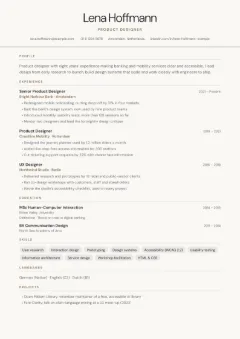 Tier 1
 -
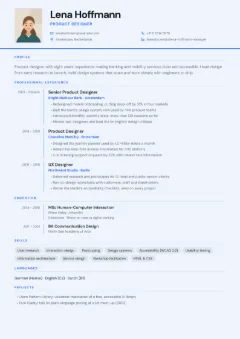 Tier 1
 -
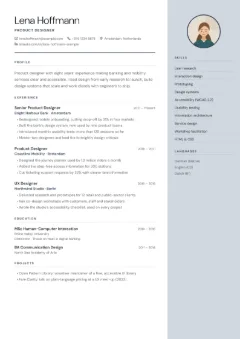 Tier 2
 -
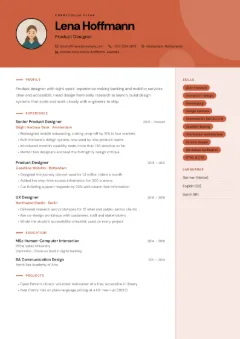 Tier 3
Tier 1: Safest (3 layouts)
One column, so there is only one way to read the page. Use these for job portals.
| Layout | Why it’s in this tier |
|---|---|
| Centred Header | Centred name and contact row, then every section in one full-width column, in reading order. |
| Academic | One column in a serif typeface. Dates sit in a narrow column beside each entry; skills and languages are written inline. |
| European Classic | One column with a dates column and an optional photo at the top left (parsers skip the image). Optional personal details are plain text. |
Tier 2: Usually fine (11 layouts)
Clean layouts with a side column or 2 columns of content. Usually fine for portals, but run the self-test on your final file.
| Layout | Why it’s in this tier |
|---|---|
| Sidebar Left | Your name, contact details, skills and languages sit in the left sidebar, so a parser may read them before your profile. |
| Sidebar Right | Name, profile and experience come first in the wide main column; skills and languages sit in a sidebar on the right. |
| Timeline | Dates beside a vertical rule in the main column, plus a tinted side column for skills and languages. |
| Two Column | Experience flows across 2 equal columns (“Experience (continued)”), so a parser may reach your education before your last role. The profile has no heading. |
| Minimal Clean | Main column with a quiet side column for skills and languages. The small contact icons are decoration; the details next to them are text. |
| Photo Header | Photo and contact details in a colour header, then a main column and a light side column for skills and languages. |
| Executive | Main column plus a side column of core competencies. The profile sits under the masthead without a heading. |
| Compact Dense | 3 columns of small type: a parser has to untangle them, and the profile has no heading. |
| Magazine | Main column plus a skills sidebar. The profile has no heading, and its large first letter can be read separately (“P roduct”). |
| Split Screen | A dark left-hand panel holds your contact details, skills and languages, so a parser may read all of that before your name and experience. |
| Badge Style | Name and contact details in a colour banner, then a main column and a tinted side column for skills and languages. |
Tier 3: Design-first (4 layouts)
Built for a person to look at. Send these by email or bring them to an interview, rather than uploading them to a portal.
| Layout | Why it’s in this tier |
|---|---|
| Creative Block | Built like Photo Header, but the heavy colour block, decorative shapes and filled skill tags are there to catch a person’s eye. On a portal they gain you nothing. |
| Tech Terminal | Code-style text: quotation marks around your name, labels such as "email": and headings like // Experience. A parser reads all of it literally. |
| Infographic | Dark colour header, timeline markers and language-level dots. The profile has no heading, and the dots mean something only to a person (the level is also written as text). |
| Card Layout | Every section in its own card in a two-column grid: education and skills sit beside your profile and experience, so the reading order jumps between columns. |
A note on photos: parsers skip the image itself, so a photo never helps an ATS. Our guide to a photo on a CV explains where one is expected. You can compare every layout side by side on the CV templates page, or start with the simple CV template.
ATS myths
“75% of CVs are rejected by an ATS before a human sees them”
No published study backs this. HR consultant Christine Assaf traced the figure to Preptel, a CV-services company that closed in August 2013, and found no evidence behind it (her 2020 article). It keeps circulating anyway, often in marketing for CV-checking services.
“An ATS can’t read PDFs”
Many systems read text-based PDFs; image PDFs are the ones that fail. Unless a portal asks for Word, send a text-based PDF: it keeps your layout exactly as you designed it.
“An ATS-friendly CV has to look plain”
An ATS reads text, not colour. A single-column CV with a coloured name, clear headings and generous spacing parses just as well as a black-and-white one, and it is nicer to read.
Frequently asked questions
Should I send a PDF or a Word document?
Use whatever the advert or portal asks for. If it doesn’t say, a text-based PDF is a good default: many systems accept it and it looks the same on every screen. YourCVy downloads are PDF only, so if an employer insists on Word, send a .docx version.
Does a photo break an ATS?
Usually not. Parsers skip the image itself, so it adds nothing for the system; in Word, a photo inside a table or text box can scramble the text around it. Whether to include one is a matter of local custom: leave it off in the UK and Ireland, where employers generally don’t expect one.
Does an ATS give my CV a score?
Some systems can rank or score applications against the job, and each employer decides whether and how to use that. There is no universal “ATS score” to aim for, and free online checkers use their own scoring, not the employer’s. Matching the advert’s wording honestly is what helps.
Is a YourCVy PDF ATS-friendly?
Every PDF includes real, selectable text that applicant tracking systems can read: each page is a high-resolution image of your design with an invisible text layer on top, like a searchable scan. Two limits. We can’t promise how a particular portal will read it; that depends on the system and the layout. And the text layer uses a standard PDF font, so letters outside Western European alphabets (such as Polish ł, Czech ř, Romanian ș, Greek or Cyrillic) become plain Latin letters in the text a system reads (“Paweł” becomes “Pawel”), though your CV looks right on the page. For portals, choose a Tier 1 layout and run the self-test.